
Download ChromaCam – Free Video Background Replacement Tool
Overview
ChromaCam is a free multimedia application built specifically for macOS users who need a reliable way to enhance their video presence without investing in costly hardware. The software replaces or blurs the background behind a webcam feed, allowing you to appear in a clean, professional setting during video calls, live streams, recordings, or virtual events. What sets ChromaCam apart from many competing tools is its ability to work without a physical green screen – the built‑in AI detects the subject and separates it from the surroundings in real time.
This makes the solution especially attractive for remote workers, online teachers, content creators, and anyone who participates in virtual meetings on a regular basis.
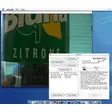
The interface is intentionally minimalistic: a single window presents a preview of the camera feed, a toggle to switch between background replacement and blur, and a small library of pre‑loaded scenes. Users can also import custom images or videos, giving them full creative control over the backdrop.
Integration is seamless with popular video conferencing platforms such as Zoom, Microsoft Teams, Google Meet, and even streaming software like OBS Studio. Once installed, ChromaCam runs as a virtual webcam that appears alongside your physical device in the system’s camera selector.
Performance is another strong point.
The AI engine runs locally on the Mac, meaning there is no latency caused by cloud processing and no risk of exposing your video feed to third‑party servers. Updates are delivered automatically, ensuring compatibility with the latest macOS releases and video‑conference APIs. In short, ChromaCam offers a secure, free, and user‑friendly way to upgrade the visual quality of any online interaction, making it a must‑have tool for modern digital communication.
Key Features
- AI‑Powered Background Removal: Real‑time detection separates you from any backdrop without a green screen.
- Background Blur Option: Instantly blur your surroundings for a subtle, distraction‑free look.
- Custom Background Library: Upload images, GIFs, or short video loops to personalize your virtual environment.
- One‑Click Integration: Works with Zoom, Microsoft Teams, Google Meet, Skype, OBS, and most major video apps.
- Low CPU Footprint: Optimized for macOS, the engine runs smoothly on MacBook Air, Pro, and iMac models.
- Automatic Updates: Stay compatible with the latest macOS versions and video‑conference APIs.
- Privacy‑First Design: All processing occurs locally; no video data is sent to external servers.
- Free Tier with No Watermark: Full functionality without subscription or intrusive branding.
Installation, Usage & Compatibility
Getting started with ChromaCam is straightforward. First, visit the official website and click the Download for macOS button. The installer is a standard .dmg package that works on macOS 10.13 (High Sierra) and later. After opening the disk image, drag the ChromaCam icon into your Applications folder. macOS may prompt you to confirm that you want to open an app from an unidentified developer; simply click “Open” after reviewing the security warning.
Once installed, launch ChromaCam from the Applications folder. The app will request permission to access your webcam and microphone – these permissions are essential for the virtual webcam to function correctly. After granting access, the main window appears with a live preview.
Use the toggle at the top to switch between Replace Background and Blur Background. To add a custom image, click the “+” icon in the background library and select a file from your Mac. Supported formats include PNG, JPEG, and MP4 (for short looping videos).
For integration, open your video‑conference software and navigate to the camera selection menu. You will now see “ChromaCam Virtual Webcam” listed alongside your physical camera. Choose it, and the software will automatically route the processed feed to the meeting.
If you encounter any issues, the “Help” menu within ChromaCam provides troubleshooting steps, including resetting the AI model, adjusting performance settings, and reinstalling the virtual driver.
Compatibility: ChromaCam is designed exclusively for macOS. It runs natively on Intel‑based Macs as well as Apple Silicon (M1, M2) devices, thanks to Apple’s Rosetta 2 translation layer when needed. While a Windows version is planned, the current release focuses on delivering a stable, high‑performance experience for Mac users. The application supports 720p and 1080p video resolutions; higher resolutions may impact performance on older hardware.
Pros and Cons
Advantages
- Completely free with no hidden subscription fees.
- No green screen required – AI handles background separation effortlessly.
- Low system resource usage, making it suitable for older MacBooks.
- Privacy‑first approach; all processing stays on the local machine.
- Seamless integration with the most popular video‑conference platforms.
- Customizable backgrounds let you match your brand or personal style.
Drawbacks
- Currently only available for macOS; Windows users must wait for a future release.
- Advanced features such as premium background packs are locked behind a paid plan.
- Occasional detection errors in very low‑light environments.
- Limited support for 4K video streams.
Frequently Asked Questions
Does ChromaCam work without an internet connection?
Yes. All AI processing happens locally on your Mac, so you can use ChromaCam offline without any latency or privacy concerns.
Can I use ChromaCam with OBS Studio for live streaming?
Absolutely. ChromaCam appears as a virtual webcam, which can be selected as a video source in OBS Studio, allowing you to stream with a custom background directly.
Is there a limit to the number of custom backgrounds I can upload?
The free version lets you store up to 10 custom backgrounds. If you need more, the premium subscription expands this limit to 50.
How does ChromaCam affect my Mac’s battery life?
Because the AI engine is optimized for low power consumption, the impact on battery life is minimal—typically an additional 5‑10% drain during continuous video use.
What should I do if the background removal looks glitchy?
First, ensure your lighting is even and avoid strong backlights. Then, open ChromaCam’s settings and enable “High‑Precision Mode,” which uses a slightly higher CPU load for better accuracy.
Conclusion & Call to Action
ChromaCam delivers a polished, professional video experience for macOS users without demanding expensive equipment or a steep learning curve. Its AI‑driven background replacement, intuitive UI, and strong privacy stance make it a standout free tool in the crowded video‑enhancement market. While the lack of a Windows version and occasional low‑light hiccups are worth noting, the overall value far outweighs these minor limitations. Whether you’re conducting remote meetings, teaching online classes, or streaming to a wider audience, ChromaCam can instantly elevate the visual quality of your feed.
Ready to upgrade your video presence? Download ChromaCam today and start enjoying a clean, distraction‑free backdrop on every call. The installation takes just a few minutes, and you’ll be up and running with a professional look in no time. Don’t let an uninspired background hold you back—embrace the power of virtual backgrounds for free, securely, and with confidence.
ChromaCam stands out as a reliable, free solution for macOS users needing virtual backgrounds. Its AI works well in most lighting conditions, and the seamless integration with Zoom, Teams, and OBS makes it ideal for both business and creative workflows. While a Windows version is still pending, the Mac‑only focus has resulted in a highly optimized experience that respects user privacy. Overall, a solid 4.5‑star rating.